
Collecting sizes is the part of a team order that eats the most time. Someone texts the group, replies trickle in, and a spreadsheet slowly fills with "M", "medium" and "maybe L". This guide shows what a clean collection step looks like, with or without an app.
Why spreadsheets break down
A spreadsheet is a fine place to store sizes and a poor way to collect them. People answer in free text, so you get five spellings of the same size. Nobody can see what is sold out. Two people edit the same cell. The organizer ends up proofreading a document when they should be organizing a team.
The fix is the same whether you build it by hand or use an app: each person picks from a fixed list, once, in one place, and the list comes from the products you actually sell.
What to ask each person
Ask for the least you need to produce and ship the item. Every extra question lowers the number of people who finish.
- Name, so the team and the organizer know who ordered what.
- The product and the size or option, chosen from a list rather than typed.
- Quantity, because some people want two.
- Any print detail you need per item, such as a name or number, or a choice between two designs.
- An email address, only if you want to send them a way to change their answer later.
Make each question a list when you can
A dropdown for "jersey number" is worse than a number field, but a dropdown for "sleeve length" is better than free text. Pick the format that makes a wrong answer impossible.
A form that works on a phone
Most team members will open the link on their phone, between other things. Keep it short enough to finish in a minute. Put the size choice first, ask for a name next, and only then the extra details. Do not ask for an account, and do not ask for payment: the moment you do, half the team stops.
What the member sees in Team Up
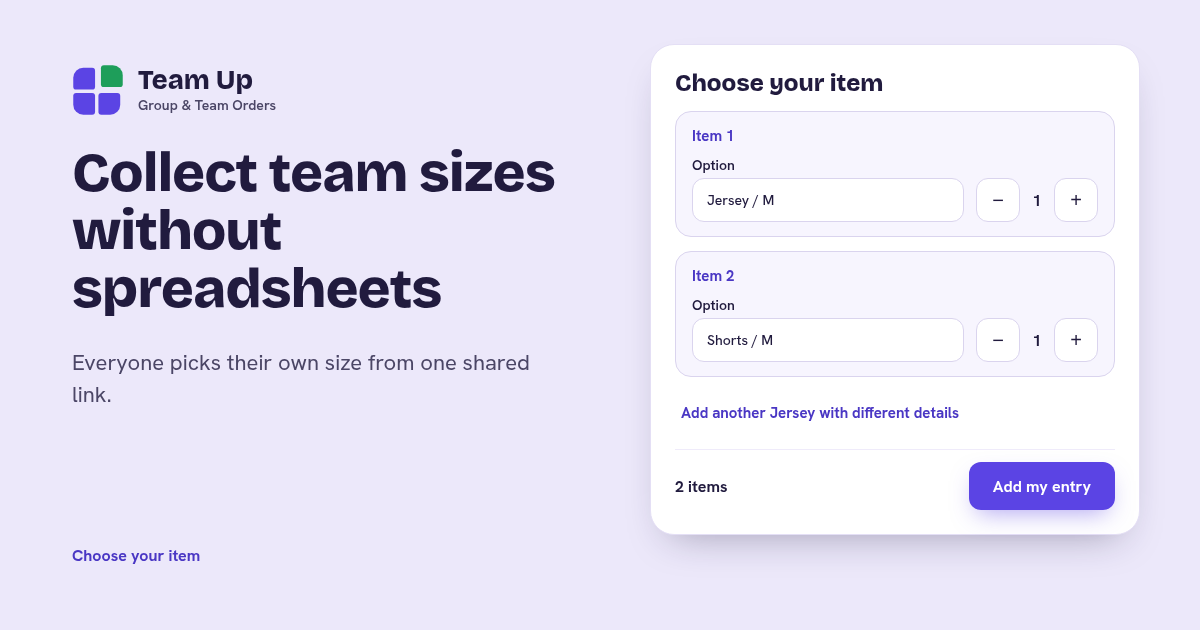
Team Up gives the organizer one link to share. A member who opens it sees the order, who started it, how many people are in and when it closes. Joining takes three things:
- Their name. It is required, so the team knows who ordered what.
- Their items. For each one they choose the option, such as the size, from your real product, and a quantity. If someone wants two shirts with different details, they add another item with its own choices.
- An email address, which is optional. If they give one, Team Up sends them a link to change their entry later.
Sold-out options are marked as sold out, so nobody picks a size you cannot make. The member pays nothing while joining: the page states that the organizer pays for the whole group when the order closes. If the shop has group discounts turned on, the page shows how close the group is to the next level.
Questions for the print floor
You can add questions that each person answers about each item: text, a number, a choice from a list, a yes or no, or a file upload for artwork. A question can be required. The answers end up next to the person and the item on the roster and in the exports, so a name and a number never get separated from a size.
Questions only the organizer answers
Some details belong to the whole order, not to each person: the team name, the logo file, the ship-to address. On the Team Grow plan you can ask these of the organizer alone. Team members are never asked for them. See the plans to compare.
Set limits so the order stays tidy
Two limits do most of the work, and the organizer can set both when they start the order:
- Maximum items per person. It stops one enthusiastic parent from ordering fifteen shirts, and a member who reaches it is told so.
- Maximum items in total. When the order is full, the page says so and nobody else can add items.
- A deadline. After it passes, nobody can join or change an entry, unless the organizer extends it.
The Free plan of Team Up also caps a team order at 20 items. Paid plans remove that cap.
Let people fix mistakes, but not forever
People will pick the wrong size. Make correcting it easy before the deadline, because a fixed list is only useful if it is right. With Team Up, a member who left an email can change their entry through the link they were sent, until the deadline. The organizer can also remove an entry from the roster, and the total is recalculated. Merchants can switch off changes to entries for their store if they prefer a stricter rule.
What the organizer gets
The organizer sees a live list of who has joined and what each person ordered, which replaces the question "who still has not answered?". The store sees the same roster and a production sheet that totals every size. The production sheet guide shows what is in it, and the guide to running a team order shows the whole flow from first message to final invoice.
Frequently asked questions
Does each team member need to create an account?
No. A member opens the link and joins as a guest. Logging in to the store's customer account is optional, and required only for invite-only orders.
Can one person order more than one item?
Yes. A member can add several items, and can add the same product again with different details. The organizer can cap the number of items per person.
What if someone chooses the wrong size?
A member who left an email address gets a link to change their entry before the deadline. The organizer can also remove an entry, and the totals update.
Do members pay when they join?
No. Members pay nothing while joining. The organizer pays once for the whole group when the order closes.
Let every teammate pick their size and details from one link — no spreadsheets, no accounts required, free to start.
Install Team Up on Shopify