
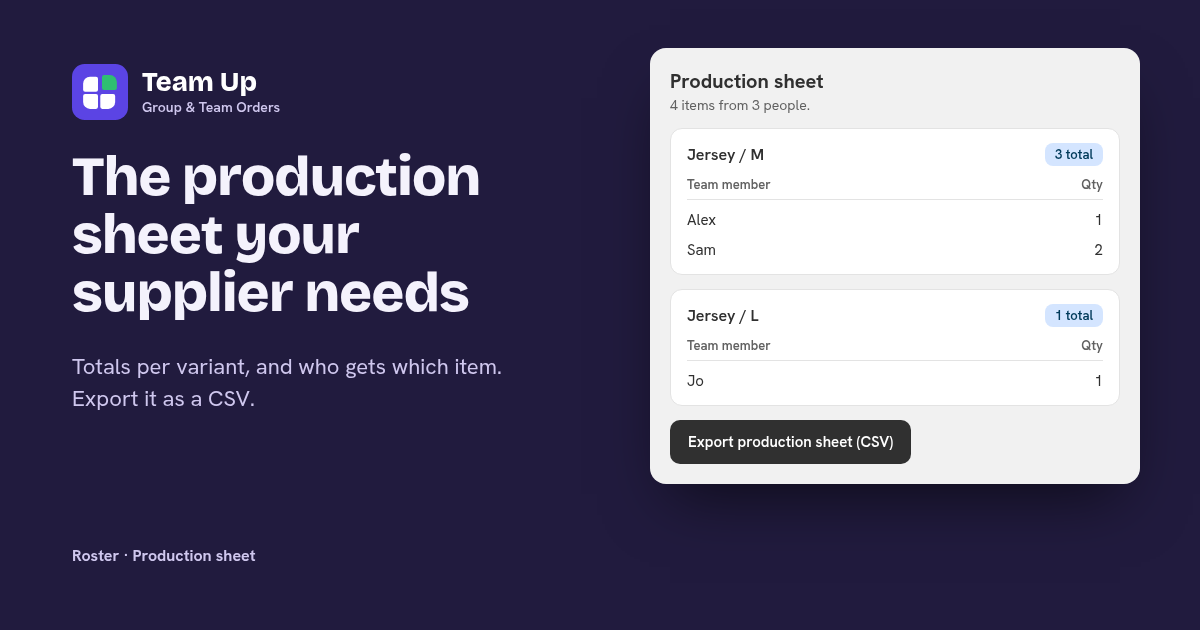
When a team order closes, the print floor does not want to read forty messages. It wants one sheet: how many of each size, and who gets what. Here is what a good production sheet contains, how to build it by hand, and what Team Up exports for you.
What a production sheet is for
A production sheet answers the two questions a decorator asks before starting a job. First, how many blanks to pull and decorate: the totals per product and size. Second, who gets which item, and with what personalization: the detail per person.
Those are two different views of the same data, and a good sheet gives you both. The totals drive purchasing and the press schedule. The detail drives personalization, packing and handing the order out.
Part one: totals per variant
A variant is one product in one size and option, for example a hoodie in medium. The totals block lists every variant once with the quantity summed over the whole order. It is the shortest part of the sheet and the one your supplier reads first.
- Group by product first, so all hoodies sit together and all tees sit together.
- Sort sizes in garment order, from small to large, not alphabetically. Alphabetical puts "L" before "S" and "XL" before "XS".
- Show one grand total, so you can check it against the number of items you expect.
Part two: the roster detail
The detail block has one row per item with the person's name, the variant, the quantity and the answers to each personalization question, such as a name or a number to print. Keep each answer in its own column, so the person and the print detail can never drift apart.
Check totals against the roster
Before you send anything, add up the detail rows and compare the result with the totals block. If the two disagree, a size was edited late or a row was copied twice. It is much cheaper to find that now than after printing.
Building it by hand
- Export the collected answers to a spreadsheet, one row per item.
- Clean the sizes so each means exactly one variant of your product.
- Make a pivot table, with product and size as rows and quantity as the value.
- Sort sizes in garment order and add a grand total.
- Keep the cleaned detail rows as a second tab, with one column per question.
- Save as CSV, in UTF-8, so names with accents survive.
This works, and it is exactly the repeated work a team order app removes.
What Team Up gives you
On every order page, Team Up shows a roster and a production sheet. The production sheet is built automatically from what people picked: every size and option tallied across the group, with the items under each variant. For a very large order, the page shows the variant totals and leaves the item-by-item detail to the export.
From the order page you can download two CSV files.
The production sheet CSV
It has two blocks. The first is the totals, with the columns Variant, Total quantity and Product, one row per variant. After a blank line comes the detail block, with the columns Variant, Participant, Quantity, one column for each question you ask, and Product. Variants are grouped under their product and sorted in size order. For a file question, the column shows the file name.
The roster CSV
It lists one row per item, with the columns Participant, Item, Quantity, State, one column for each question, and Paid. State reads "collected" once the order is paid and "submitted" before. Paid is Yes or No. A person who joined with no items still appears, with quantity 0, so the list is a complete record of who took part.
Safe to open in a spreadsheet
Both files are UTF-8 with a byte order mark, so Excel opens names with accents correctly. A cell that starts with a character a spreadsheet could read as a formula, such as an equals sign, gets an apostrophe added in front, so text typed by a team member is never executed.
What to send your supplier
A supplier can only work from what you send. A complete package for a team order usually includes:
- The production sheet: totals per variant and the detail rows.
- The artwork files, in the format your decorator asks for, with sizes and colors.
- Placement and method for each product, for example left chest embroidery, back print.
- The deadline for delivery and the address to ship to.
- A contact person, usually the organizer, for questions about names and numbers.
- A note about spares, if your process adds a few extra pieces for misprints.
Team Up can collect artwork as a file answer, so the logo travels with the roster. Questions meant for the organizer alone, such as the logo file, are part of the Team Grow plan.
Common mistakes
- Sending the roster without the totals, which makes the supplier count by hand.
- Sorting sizes alphabetically.
- Letting people change sizes after the order has gone to production.
- Mixing two designs in one sheet without a column that says which is which.
A deadline fixes the third one. See how to collect sizes without spreadsheets for how to set limits and a closing date, and how to run a team order on Shopify for the full flow.
Frequently asked questions
What columns are in the Team Up production sheet CSV?
The totals block has Variant, Total quantity and Product. The detail block has Variant, Participant, Quantity, one column for each question you ask, and Product.
What is the difference between the roster CSV and the production sheet CSV?
The roster CSV lists every item per person, with a State and a Paid column. The production sheet CSV adds the totals per variant, grouped by product in size order, which is what a decorator reads first.
Will accents and non-English names show correctly in Excel?
Yes. Both exports are UTF-8 with a byte order mark, which makes Excel read non-English characters correctly.
Can I export a large team order?
Yes. The order page shows the variant totals for very large orders, and the CSV exports contain every item and answer.
Generate ready-to-print production sheets and CSV rosters automatically from every group order on Shopify.
Install Team Up on Shopify